Conditional Access Policies in Microsoft 365: What to Turn On First
Every Microsoft 365 sign-in can get a second check after the password. Conditional Access policies run that check, allowing the sign-in, demanding MFA, or blocking it based on user, device, location, and risk.
Table of Contents
You probably own this already. Microsoft 365 Business Premium, E3, and E5 all include it. Setting it up is a separate job, and it's the piece of identity and access management that decides who gets in, from which device, and how hard they have to work to prove it.
Unset, it protects nothing. Microsoft's 2025 Digital Defense Report found that 97% of identity attacks were password spray attacks, where someone tries a few common passwords against every account they can find and waits for one to work. One is enough. A short, well-built set of policies turns that into wasted effort.
And if you don't set it, Microsoft will set part of it for you. Policies it manages land in your tenant, meaning your company's Microsoft 365 environment, in report-only mode, where they only log what they'd do, and switch themselves on about a month later. That's mostly good news. It's also how a shared front-desk scanner login can stop working on a Tuesday morning with nobody sure what changed.
So who's making these decisions in your company right now?
What Does a Conditional Access Policy Actually Do?

A Conditional Access policy is one if-then rule applied after the password is accepted. If the conditions match, it blocks the sign-in or grants access with requirements attached, like MFA or a company-managed device. If nothing matches, the sign-in goes through.
Microsoft calls these policies if-then statements, and the if side reads signals. Who's signing in. Where from. On what.
- The user, a group, or a role like Global Administrator, and now AI agents as well
- Location, set by IP address range or by whole country
- The device. Is it company-managed and marked compliant, or someone's home laptop?
- Which app is being opened
- Risk scores from Microsoft Entra ID Protection, such as a sign-in from a highly unusual location (this one needs a P2 license)
On the then side, the menu is short. Block. Or grant, with conditions such as MFA, a phishing-resistant sign-in method, a compliant device, an approved app, a password change, or accepting terms of use.
Microsoft's Conditional Access deployment guide uses a payroll example. A policy requiring MFA for the Finance group on the payroll app makes Finance users prove who they are. Everyone outside Finance gets in with just a password. Blocking them takes a second policy.
Rules only fire when something matches. They also run after the password step, so Conditional Access isn't your first line against something like a flood of junk traffic. Simple on paper. The trouble lives in the exceptions.
If you want the wider picture first, read what identity and access management covers and how SSO, MFA, and IAM fit together. Conditional Access is the rulebook sitting between all three.
Do You Need Conditional Access, or Are Security Defaults Enough?
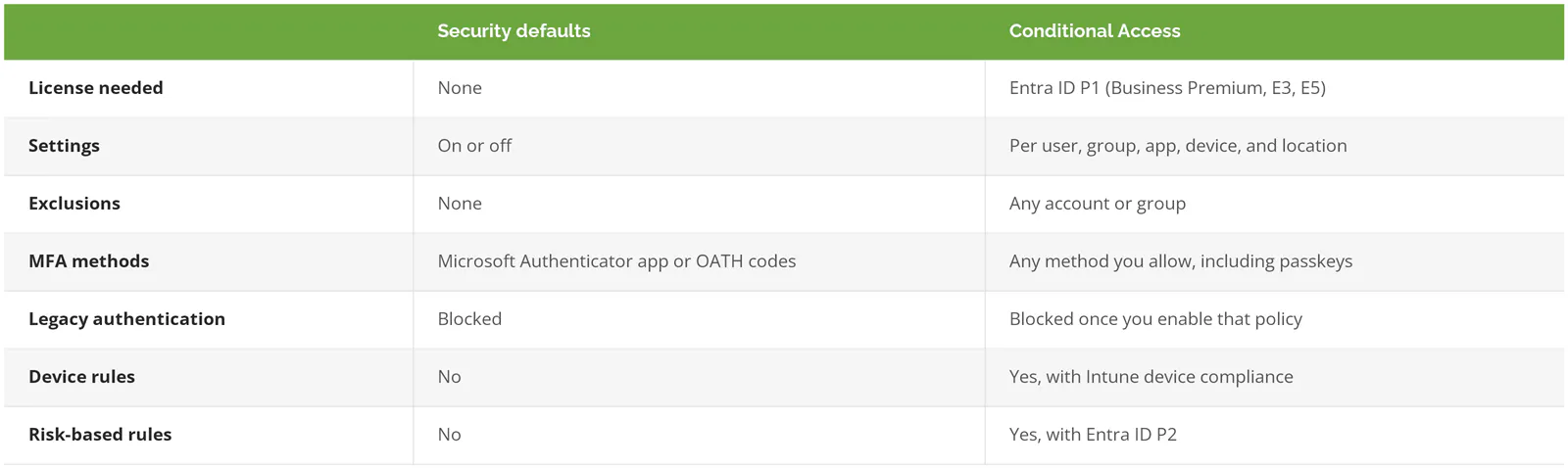
Security defaults are enough when you don't have Entra ID P1, the Microsoft identity license included in Business Premium, E3, and E5, and have no exceptions to manage. The first time you need to exclude an account, trust a managed device, or treat admins differently, you need Conditional Access. You can't run both.
Security defaults are Microsoft's free on-off switch. Turn them on and everyone registers for MFA, admins complete MFA every time they sign in, other users get prompted when Microsoft judges it necessary, and both legacy sign-in methods and device code sign-ins, where a code typed on one screen signs in another, get blocked. Microsoft says MFA plus blocking legacy authentication stops more than 99.9% of common identity attacks. That's a strong free baseline.
With Business Standard, 25 people, nobody traveling, and no shared devices, turn on security defaults and spend the money elsewhere. That's a real answer. If MFA itself is still new territory, start with what multi-factor authentication is and how it works.
Defaults break at the first exception. It might be a vendor account that can't do MFA, a kiosk on the plant floor running under a shared login, or a contractor who only ever signs in from a personal phone. Any one does it. Security defaults have no exclusion list, so the only way around one account is switching protection off for everyone, and creating any Conditional Access policy blocks you from switching defaults back on.
Which Microsoft 365 License Covers Conditional Access?
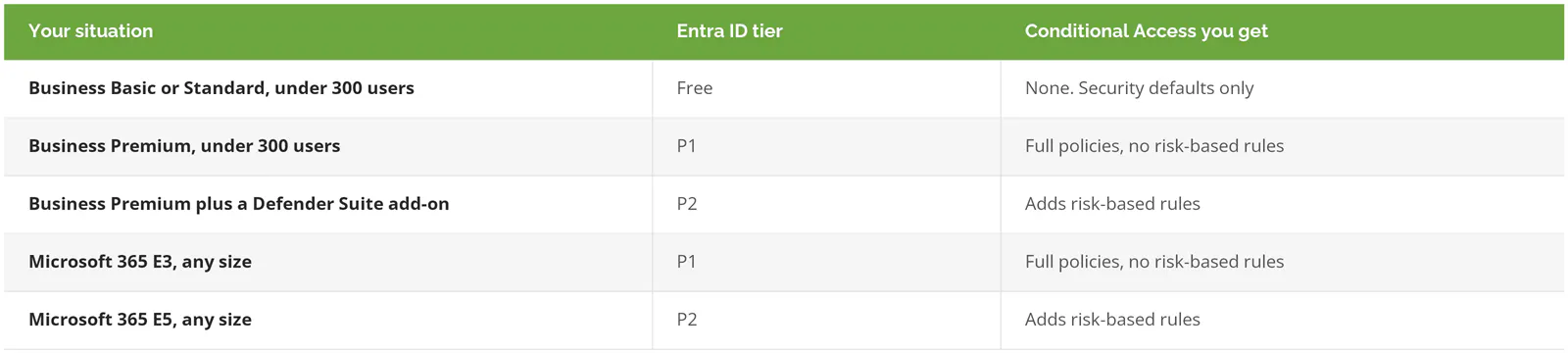
Entra ID P1. It comes bundled in more plans than the name suggests.
P1 shows up inside Microsoft 365 E3, E5, E7, F1, and F3, Enterprise Mobility + Security E3, and Business Premium, according to Microsoft's Entra licensing page. Risk-based policies, the ones that react when Microsoft flags a sign-in or a user as likely compromised, need Entra ID P2. That comes with E5, E7, or the Defender Suite add-ons for Business Premium.
Business Premium is capped at 300 seats, counted across Business Basic, Business Standard, and Business Premium combined, and Microsoft points larger organizations to its enterprise plans. A 280-person manufacturer planning to hire 40 people next year is going to cross that line. Design your policies around the licenses you'll hold in 18 months, not the ones on this month's invoice.
When the license lapses, policies aren't disabled or deleted. They stay put. You can delete them, but you can't edit them until the license is back.
Which Conditional Access Policies Has Microsoft Already Added to Your Tenant?
Microsoft adds managed Conditional Access policies to eligible tenants in report-only mode, then turns them on no less than 30 days later unless you act. It sends an email and a post in the Microsoft 365 message center 2 weeks before they enforce.
They're called Microsoft-managed policies, and they show Microsoft in the Created by column of your policy list. The current set looks like this.
- Block legacy authentication
- Block device code flow, a sign-in method built for screens without keyboards
- MFA for 14 highly privileged admin roles when they open Microsoft admin portals
- MFA for all users
- MFA for accounts still on the older per-user MFA setting, which Microsoft no longer recommends
- For P2 tenants, three risk policies covering risky sign-ins, blocking high-risk users, and making high-risk users fix the problem before they continue
- Blocking high-risk AI agents, still in preview
You can turn them on early, turn them off, or exclude accounts. You can't rename or delete them, and if you need bigger changes than an exclusion or an on-off switch, Microsoft's answer is to duplicate the policy and edit the copy instead. Why push so hard? Requiring MFA cuts the risk of compromise by more than 99%, so Microsoft would rather flip the switch than wait for you.
Usually that's a favor. The exposure sits in a tenant where nobody reads the message center. A policy turns on, a shared receiving-dock login or a vendor integration running under a regular user account can't complete MFA, and the first person to notice is whoever can't ship orders that morning. Nobody on your team changed anything. Microsoft did. It happened on schedule, after a notice went to an inbox no one watches, and sometimes it moves faster than 30 days and says so in that notice.
A second source of policies arrived more recently. Baseline Security Mode in the Microsoft 365 admin center can create two Conditional Access policies, one requiring phishing-resistant sign-in for admins and one blocking legacy authentication. Microsoft also notes that if an admin opened that page between November 2025 and early February 2026, the tenant may hold two disabled draft policies nobody meant to create.
Open your policy list and read the Created by column. Ten minutes, tops. It shows who has actually been designing your access rules.
Which Conditional Access Policies Should You Turn On First?
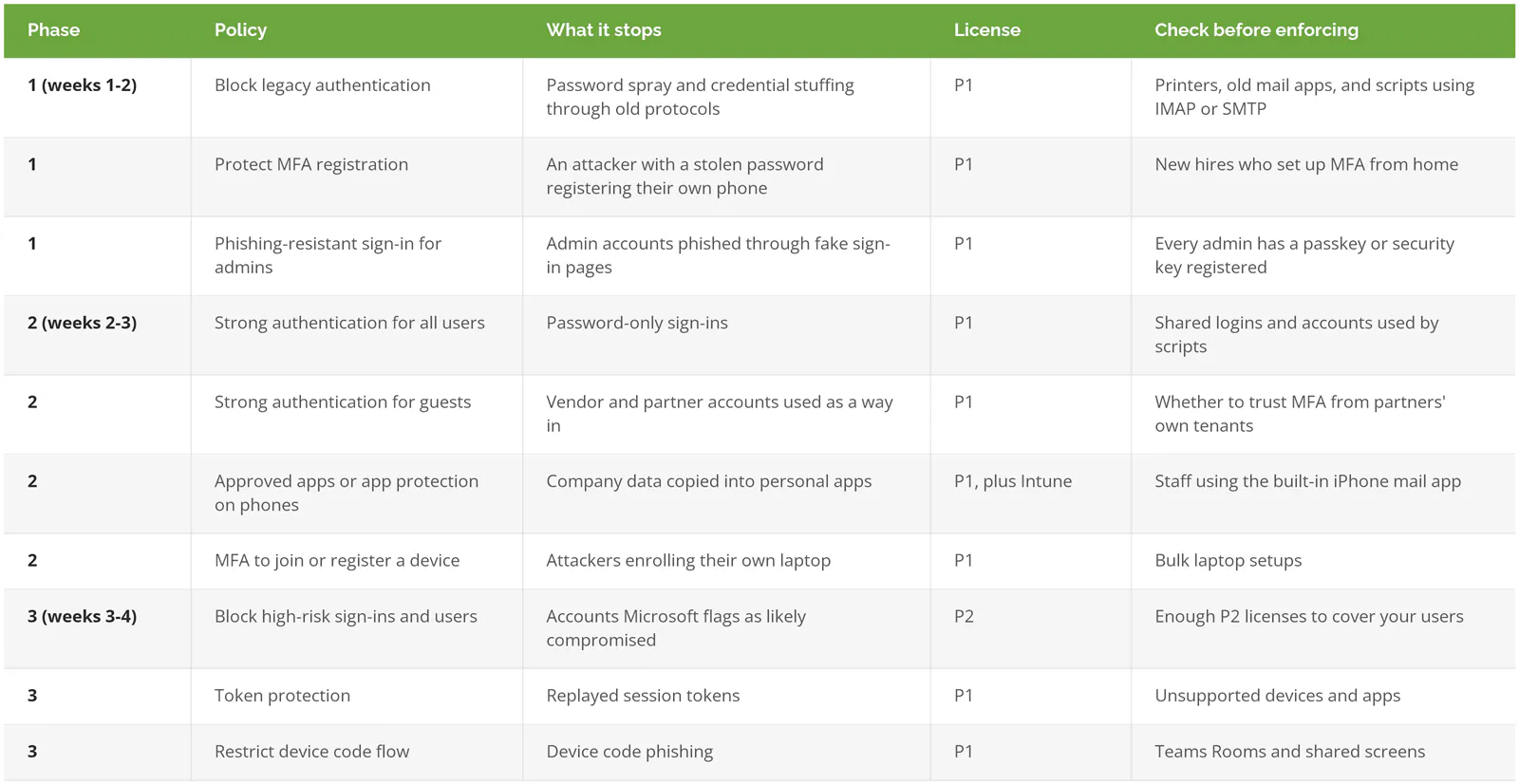
Block legacy authentication, lock down MFA registration, and require phishing-resistant sign-in for admins first. Then require strong authentication for everyone, guests included. Risk-based policies, token protection, and a device code flow block come last.
That order follows Microsoft's own deployment plan, which spreads the work over roughly 4 weeks in 3 phases and keeps each policy in report-only mode for at least a week before it enforces. The logic holds up. Each phase shuts the easiest door before asking employees to change a single habit.
Legacy authentication goes first for a reason. It's the older sign-in method behind IMAP, POP3, SMTP, and clients like Office 2010. It can't do MFA. At all. Microsoft's analysis found that more than 97% of credential stuffing attacks, which replay passwords leaked in other breaches, and more than 99% of password spray attacks use it. Block it and those attacks have nowhere left to land. Check first, though. Filter the sign-in logs by the Client App column, and look at multifunction printers that scan to email early, since Microsoft's security defaults guidance on legacy authentication links to its setup guide for exactly those devices.
Device code flow belongs on the list too. It lets a device with no keyboard, like a conference room display, sign in when someone types a short code on another screen. Attackers turned that into bait. Microsoft tracked a group it calls Storm-2372 sending fake Microsoft Teams meeting invites built around it since August 2024, and its guidance is to block device code flow wherever possible. Ask whether anything in your office still depends on it.
Keep the list short. Microsoft caps a tenant at 240 policies, counting ones that are switched off, and recommends grouping apps with the same requirements into one policy rather than building one per app. A 150-person distributor doesn't need a policy per department. It needs a list someone can explain on a phone call.
For a yardstick outside Microsoft, CISA's Secure Cloud Business Applications (SCuBA) baseline for Entra ID lands in nearly the same place. Block legacy authentication. Enforce phishing-resistant MFA for all users, and require it for highly privileged roles. Block device code flow. The baseline was written for federal agencies, and it's still one of the clearest free checklists a private company can hold its tenant against. Treat it as a way to find what you skipped.
Conditional Access is one piece of a broader set of IAM best practices for smaller companies, next to least-privilege admin roles and removing accounts that belong to people who left.
How Do You Roll Out Conditional Access Without Locking Everyone Out?
Create two emergency access accounts before any policy enforces, run every new policy in report-only mode for at least a week, and change one thing at a time. Skip the first step and one bad policy can shut out every admin you have.
In May 2024, an admin posted on Microsoft's Q&A forum that their company had been locked out of its tenant for almost 3 weeks because of a faulty Conditional Access policy. Their support case kept getting passed between teams. Access came back only after a Microsoft team excluded the Global Administrator account from the policy, which is the exact exclusion that should have been there on day one.
Almost three weeks without the admin portal. Over one policy.
Emergency accounts come with unusually specific guidance from Microsoft. Keep at least two. Make them cloud-only on the .onmicrosoft.com domain, so they don't depend on your on-premises directory, and don't tie them to any one employee or their phone. Protect them with a passkey on a physical security key or with certificate-based authentication, using a different method than your everyday admins use. Exclude them from every policy that blocks or restricts sign-in, alert every time they're used, and test them at least every 90 days. Since Microsoft now requires MFA to reach its admin portals, even these accounts need that passkey. Untested, they're just a guess.
Then there's report-only mode. A report-only policy logs what it would have done, sign-in by sign-in, without blocking anyone. Leave it there for a week, read the results, then flip it on. For odd cases, like a contractor signing in from a personal phone overseas, the What If tool shows which policies would apply before anyone tries it for real.
Name policies so they can be read aloud. Microsoft suggests a sequence number up front, such as CA01, followed by the apps, the response, and who it applies to. Turn on protected actions too. Changing or deleting a policy then requires a fresh MFA check. And a policy deleted by mistake can be restored within 30 days, as long as someone notices inside that window.
Exclusion lists are the quieter risk, because every rollout adds a few entries and pruning them is nobody's scheduled job. The CFO who travels. The scanner account. The vendor who couldn't get MFA working before a deadline. Each one makes sense on the day it's added, and two years later nobody remembers why there are two dozen names on it, which is exactly the list an attacker would want to be on. Microsoft's advice is to use exclusions sparingly and add people back as soon as possible. Somebody has to own that.
What Won't Conditional Access Stop?
Conditional Access won't stop an attacker who steals a session token after a user finishes MFA, and user-based policies don't cover apps that sign in on their own as service principals. It also only runs after the password step.
Picture a fake sign-in page. It sits between your employee and Microsoft, passes the real MFA prompt through, and copies the session token that comes back. Your employee did everything right. The attacker then replays that token from their own machine, and to Microsoft it looks like a normal signed-in session. Nothing looks wrong.
Two controls narrow the gap. Phishing-resistant methods, like passkeys, are tied to Microsoft's real sign-in address, so they won't complete on a look-alike site. And token protection binds the sign-in token to the device it was issued to, so a copied token fails anywhere else. It's generally available for native apps on Windows, covering Exchange Online, SharePoint Online, and Teams. Microsoft recommends a pilot group and report-only mode first, since unsupported apps and devices will fail the check.
Fake login pages aren't the only way around MFA. MFA bombing, flooding someone with push prompts until they tap approve out of fatigue, goes after the person instead of the policy, which is why teaching employees to spot phishing still matters after every policy is on.
Apps are a separate blind spot. Calls made by service principals, the identities that apps and automation use to sign in, aren't blocked by policies scoped to users. Microsoft covers those with Conditional Access for workload identities, which carries its own license. Conditional Access is how Microsoft enforces zero trust security at sign-in. It isn't all of it. Companies weighing identity platforms beyond Entra ID can compare the best IAM solutions for 2026.
What Changed With Conditional Access in 2026?
Four changes from the past year are worth checking against your tenant. None of them needs a project. Just someone who checks.
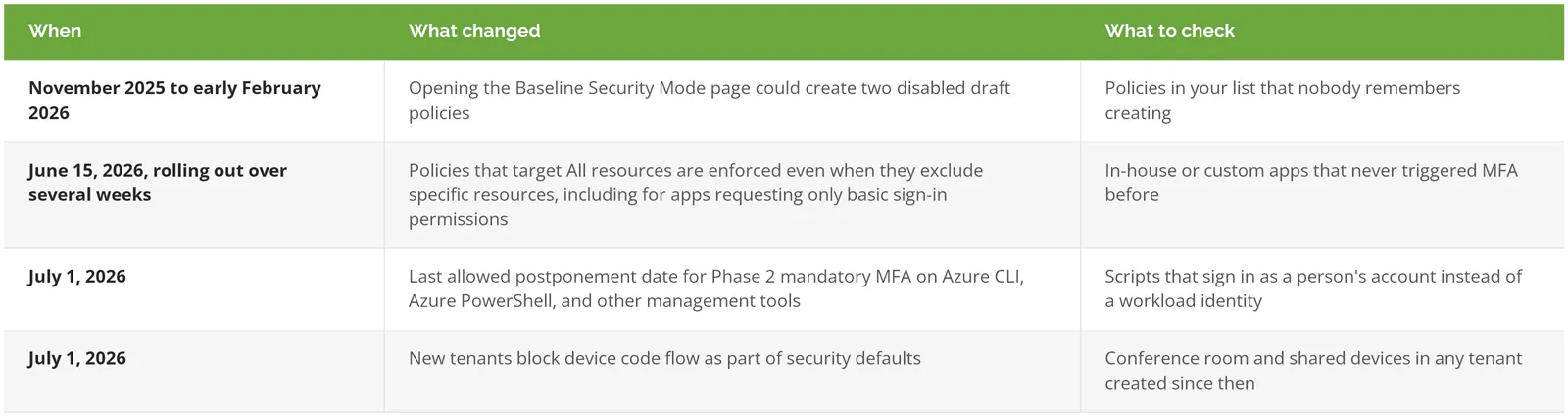
Each one has a Microsoft notice behind it, including the resource exclusion enforcement change and the mandatory MFA schedule for Azure.