Microsoft 365 Security Checklist: Tenant Settings to Lock Down First
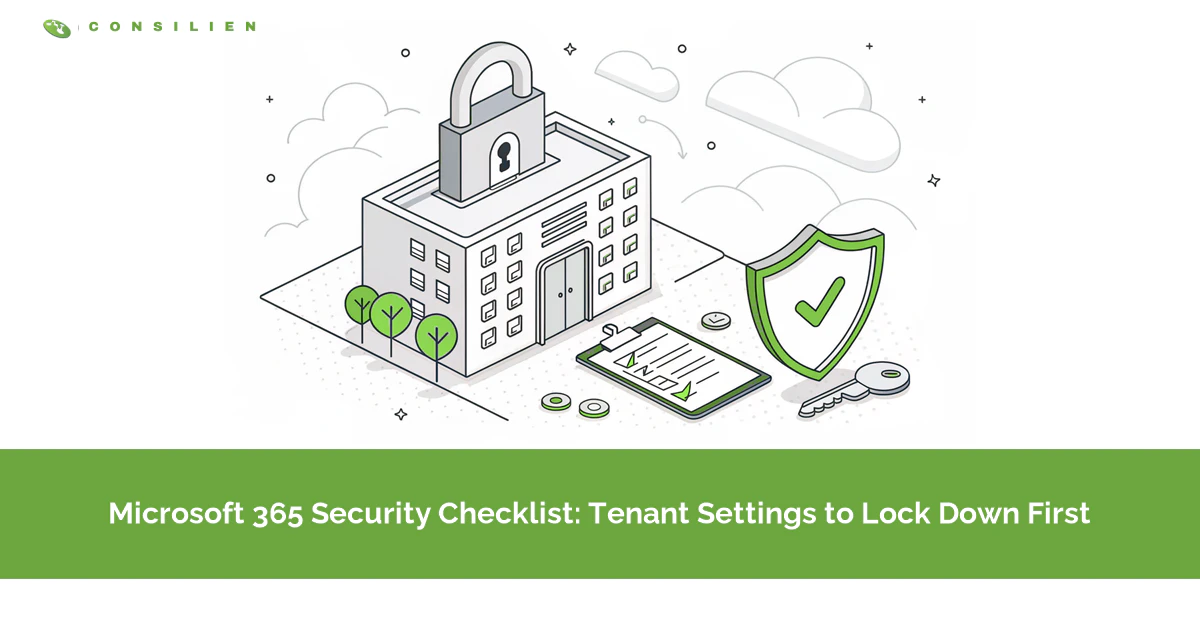
Start with identity. Create two emergency access accounts, require MFA for every user, block legacy authentication, and keep Global Admins under five. Then turn off external auto-forwarding, restrict app consent, tighten sharing, and confirm audit logging is on.
Table of Contents
A Microsoft 365 security checklist is usually handed over as a list of 40 settings with no order. That's how good intentions die. Somebody starts at item one, hits a setting that breaks the scanner in accounting, and the project stops there.
Order matters more than length. The tenant (your company's own instance of Microsoft 365) is one piece of cloud managed IT for Azure and Microsoft 365, and the nine settings below are sequenced by what attackers actually go after first. Each one gets where it lives, what it stops, and what it can break.
Key Takeaways
Lock down sign-in before anything else. Microsoft's own data says MFA blocks over 99% of identity-based attacks, and over 99% of password spray attacks use legacy authentication. Create two emergency admin accounts first so a bad policy can't lock you out. Every setting here works on Business Basic and Standard except Conditional Access, which needs Entra ID P1. Finish with Baseline Security Mode or CISA's free ScubaGear tool.
What should you lock down first in a Microsoft 365 tenant?
Lock down identity first, then email, then data. Emergency access accounts, MFA, a legacy authentication block, and a short Global Admin list close the sign-in paths attackers use most. Forwarding, app consent, sharing, and audit logging come next because they limit damage after an account is stolen.
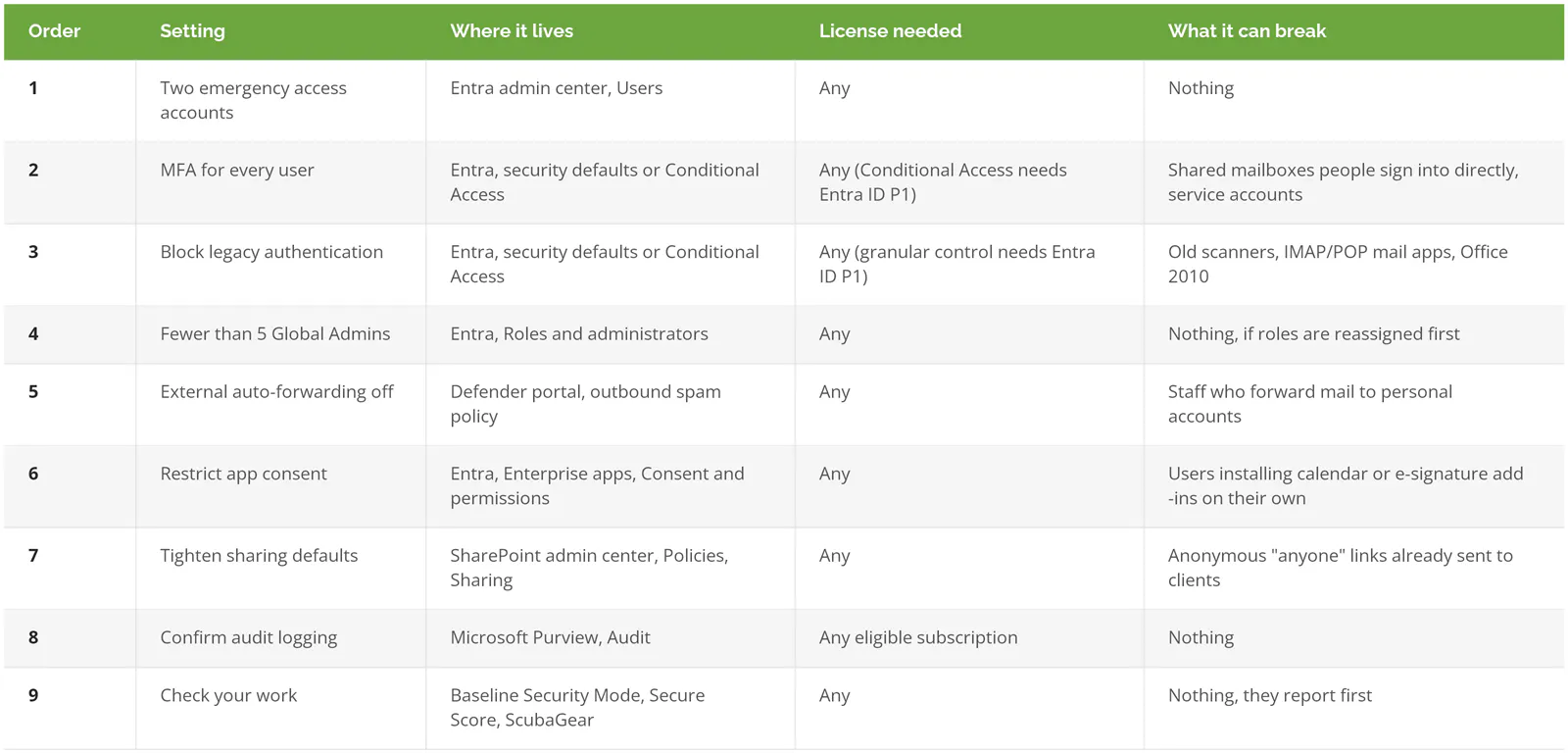
None of it takes exotic tools. You'll spend more time finding out what each change breaks than making the change.
Create two emergency access accounts before you change anything
Make 2 cloud-only Global Administrator accounts on your `.onmicrosoft.com` domain before you touch MFA or sign-in policy. If a Conditional Access rule goes wrong at 6 p.m. on a Friday, these are how you get back in. Microsoft calls them emergency access accounts. Admins call them break-glass accounts.
Microsoft's emergency access guidance is specific. Keep at least two. Protect them with phishing-resistant sign-in (FIDO2 security keys or certificate-based authentication), different from what your normal admins use. Exclude them from any Conditional Access policy that blocks sign-in. Alert on every sign-in. And test that they still work at least every 90 days.
That last one gets skipped. An emergency account whose security key sits in a drawer nobody can find is just another account with full control and no owner.
Require MFA for every user: security defaults or Conditional Access?
Require MFA for every user, not just admins. On Business Basic or Standard, turn on security defaults, which is free and covers MFA and legacy authentication in one switch. On Business Premium or E3, use Conditional Access instead, because it lets you exclude your emergency accounts and scope rules by user, device, and location.
You can't run both. Microsoft's security defaults page says that if you have Entra ID P1 or P2 licenses, "security defaults are probably not right for you." Its Business Premium MFA setup guide walks through the switch. Turn off security defaults only on the same day you turn on Conditional Access policies that replace them.
Why every user? Microsoft's Digital Defense Report 2025 summary says MFA, "especially phishing-resistant MFA," can block over 99% of identity-based attacks. The account that gets phished is rarely the admin's. It's the AP clerk.
The order and the report-only testing are in our guide to conditional access policies in Microsoft 365. If you're still sorting out what MFA covers versus single sign-on, SSO vs MFA vs IAM untangles the three.
Block legacy authentication
Legacy authentication means older sign-in methods, like IMAP, POP3, and Office 2010, that can't ask for a second factor. Microsoft reports that more than 99% of password spray attacks use these protocols. Block them, or MFA has a back door.
Password spraying is simple. An attacker tries "Fall2026!" against every mailbox in your company. A legacy protocol never prompts for the code on your phone, so one correct guess is enough.
Before you block, check the sign-in logs. Filter on client app for anything that isn't a browser or modern client. You'll usually find a copier that scans to email, a line-of-business app from 2014, or one person's phone using the built-in iOS mail app with an old profile. Fix those, then block. Conditional Access lets you run the block in report-only mode first and see who'd have been stopped.
Keep Global Admins under five
Microsoft's role best practices say to assign Global Administrator to fewer than five people. A Global Admin can read every mailbox, reset every password, and turn off every policy on this page. Give people the narrower role their job needs instead.
Count yours. Entra shows an alert card on its overview page once you hit 5 or more.
The extras are rarely malicious. They're the founder who wanted to see everything, the previous IT vendor, and a consultant's account from a 2023 migration that nobody removed. Your helpdesk needs Helpdesk Administrator. Your Exchange person needs Exchange Administrator. Billing needs Billing Administrator. If someone resists giving up Global Admin, ask what they did with it last month. The answer is usually nothing.
Our identity and access management services page covers the larger version of this cleanup, including time-limited admin rights.
Turn off external auto-forwarding and check inbox rules
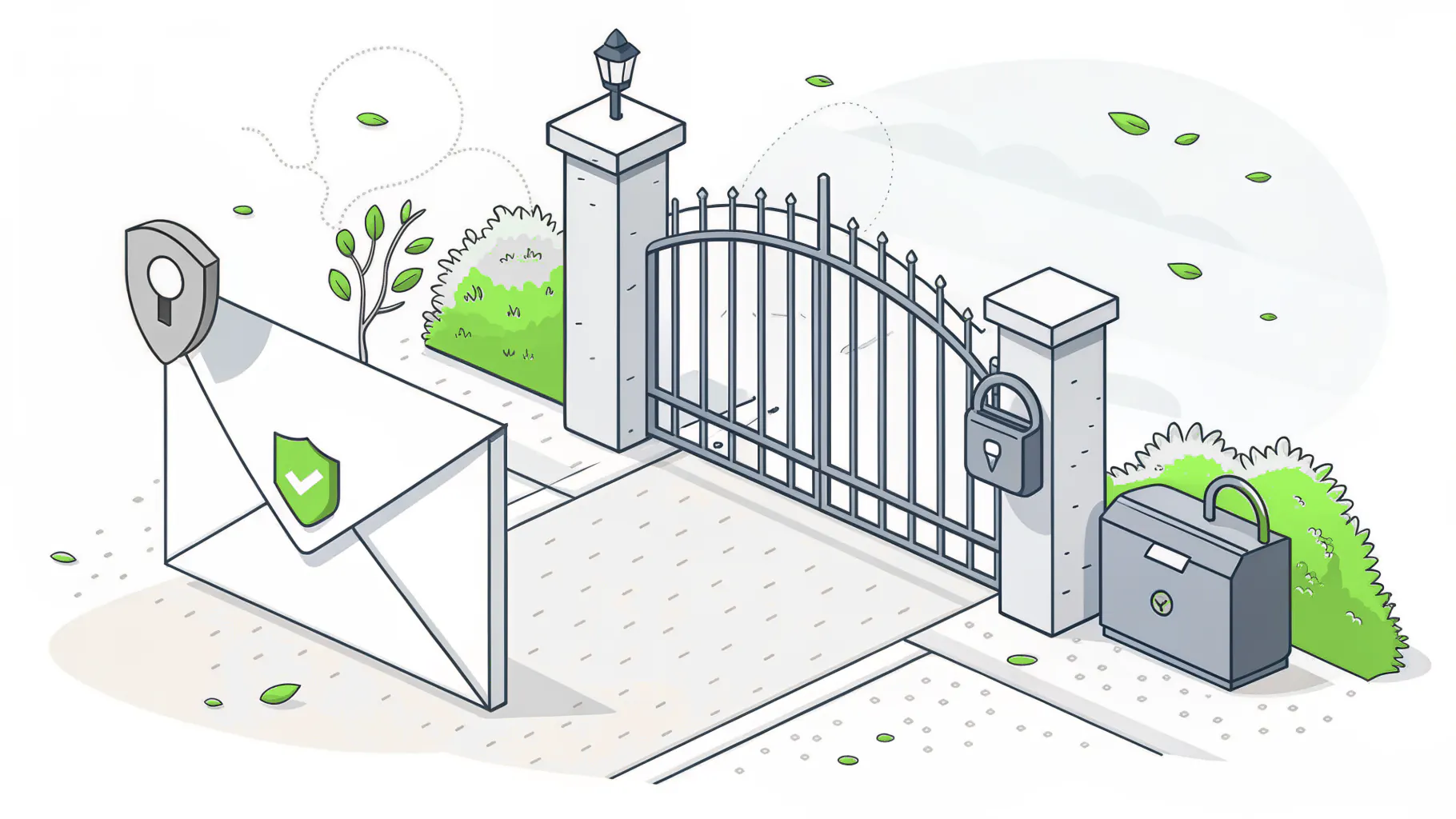
Set automatic external forwarding to Off in the default outbound spam policy. Don't leave it on "Automatic." Microsoft says "Automatic" was equivalent to On when it launched and changed to Off in 2021 only for tenants that weren't already using it. In some older tenants, it still forwards.
That detail is on Microsoft's external forwarding page, and it's why "we left it on the default" isn't an answer. Pick On or Off explicitly. If someone has a real business need, allow forwarding for just that person in a custom policy.
Forwarding matters because of what happens after a mailbox is stolen. The attacker creates a rule that copies every message with "invoice" or "wire" in it to an outside address, or quietly moves replies from your bank into the RSS Feeds folder. The account owner never sees the conversation. Look at inbox rules on your finance and executive mailboxes today.
The rest of the email stack, Defender for Office 365, impersonation protection, and when a third-party layer makes sense, is in Microsoft 365 email security.
Restrict who can consent to third-party apps
In many older tenants, users can still let outside apps read their mail and files with one click. Change the user consent setting to "Allow user consent for apps from verified publishers, for selected permissions," and turn on admin consent requests so people can still ask. Microsoft documents both on its user consent settings page.
This closes consent phishing, where the attacker doesn't steal a password at all. The user gets a link, sees a real Microsoft prompt asking to approve "Document Viewer," and clicks Accept. That app now holds a token to the mailbox. MFA never comes up, and resetting the password doesn't revoke the token.
Check what's already approved under Enterprise applications. A tenant that's been open for years usually has a few apps there nobody remembers approving.
Tighten SharePoint, OneDrive, and Teams sharing defaults
Set the organization-wide sharing level in the SharePoint admin center to "New and existing guests" or tighter, and change the default link type from "Anyone" to "Specific people." Teams files live in SharePoint, so this one setting governs most external file sharing in the tenant.
Anonymous "Anyone" links are the problem. Anyone holding the URL can open the file, including whoever it got forwarded to. Set an expiration if you keep them at all.
Expect some pushback. Firms that send files to clients every day have years of "Anyone" links in circulation, and some of those are how clients pull monthly statements. Run a sharing report first so you know which client folders will feel it.
The full Teams and guest-access side, including the October 2026 change to external chats, is in Teams and SharePoint external sharing. For files that shouldn't leave at all, the question is what your plan's Microsoft 365 DLP coverage actually watches.
Confirm audit logging is on and know how long it keeps records
Audit logging is already on. Microsoft Purview's Audit (Standard) is enabled by default and keeps records for 180 days. Your job is to confirm it, give the right people search access, and know where the 180-day limit leaves you after a breach you find late.
Plenty of older checklists still say "turn on the unified audit log." That step was real once. Now the work is different.
Open Purview, go to Audit, and run a search on yesterday's activity. If results come back, it's on. Then ask the harder question. If a mailbox was quietly compromised in April and you found out in November, would the records still exist? On Audit (Standard), probably not. Audit (Premium), which comes with E5, keeps Entra, Exchange, SharePoint, and OneDrive records for a year by default. Without it, the other route is exporting logs to a SIEM (a system that collects and searches security logs).
Check your work with Baseline Security Mode, Secure Score, and ScubaGear
Three free tools tell you what you missed. Baseline Security Mode in the Microsoft 365 admin center applies Microsoft's recommended defaults across Office apps, Exchange, SharePoint, OneDrive, Teams, and Entra. Microsoft Secure Score ranks remaining gaps by impact. CISA's ScubaGear checks your tenant against federal secure configuration baselines.
- Baseline Security Mode. Admin center, Settings, Org settings, Security and privacy. Microsoft announced it at Ignite 2025. Its settings page lets you see who a setting would affect before you turn it on. If you opened it between November 2025 and early February 2026, you may find two disabled draft Conditional Access policies in your tenant. Microsoft says they're harmless.
- Secure Score, in the Defender portal.
- ScubaGear. A free PowerShell tool from CISA's Secure Cloud Business Applications project. It produces a report against CISA's baselines for Entra, Exchange, Defender, SharePoint, Teams, and Power Platform. It's built for federal agencies, so some findings won't fit a 60-person firm. Read them anyway.
Don't chase a perfect Secure Score. It measures configuration, not whether someone is already inside, and a 90% score with a stolen admin account is still a stolen admin account.
Which settings need Business Premium?
Only Conditional Access needs a paid identity tier, Entra ID P1, which comes with Business Premium, E3, and E5. Every other setting on this checklist works on Business Basic and Standard. What Premium adds is control over how strict each rule is, plus Defender for Office 365 and Intune for device rules.
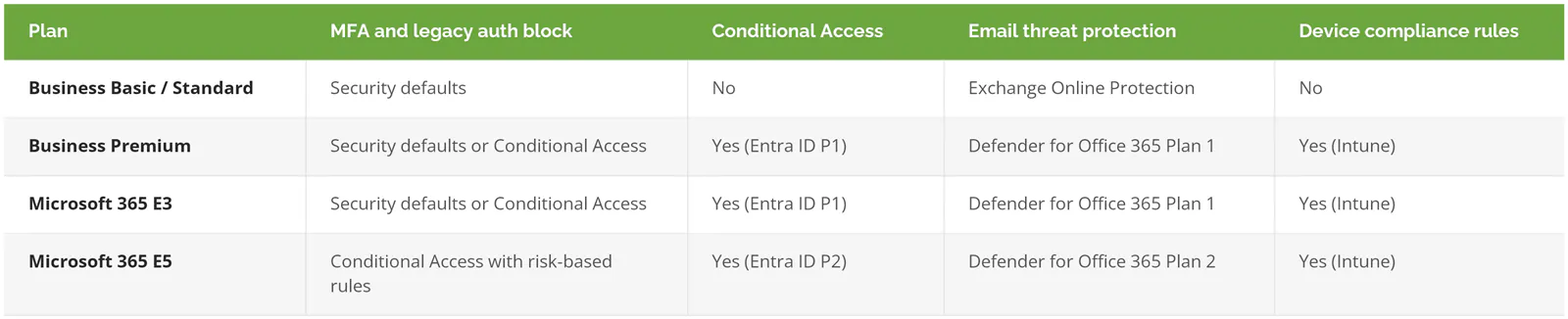
If you're on Business Standard and this list made you want Conditional Access, the price gap and plan choice are in Business Premium vs E3 vs E5.
Who should own tenant settings after the first pass?
Someone with a name. These settings drift. New staff get Global Admin "for a week." A vendor asks for forwarding. A Teams app gets approved during a busy afternoon. Somebody needs to review Secure Score monthly, recheck admin roles quarterly, and test the emergency accounts every 90 days.
If you have a full-time Microsoft 365 admin who already does that, you don't need outside help with this list. Hand it to them.
If tenant security is a side job for your office manager or your one IT generalist, that's when a managed provider earns its fee, and our Microsoft 365 managed services cost guide shows what that ongoing work costs per user. Consilien is a Microsoft Cloud Solution Provider that serves businesses nationwide. If you'd like a second set of eyes on your tenant before you start changing things, speak to a Microsoft 365 expert.